
Stop asking customers for their passwords.
Every password pasted into a ticket is a breach you haven’t had yet, and a support queue that moves at the speed of screenshots. TrustedLogin puts your agent inside the customer’s site in one click, with access you can scope, revoke, and prove.
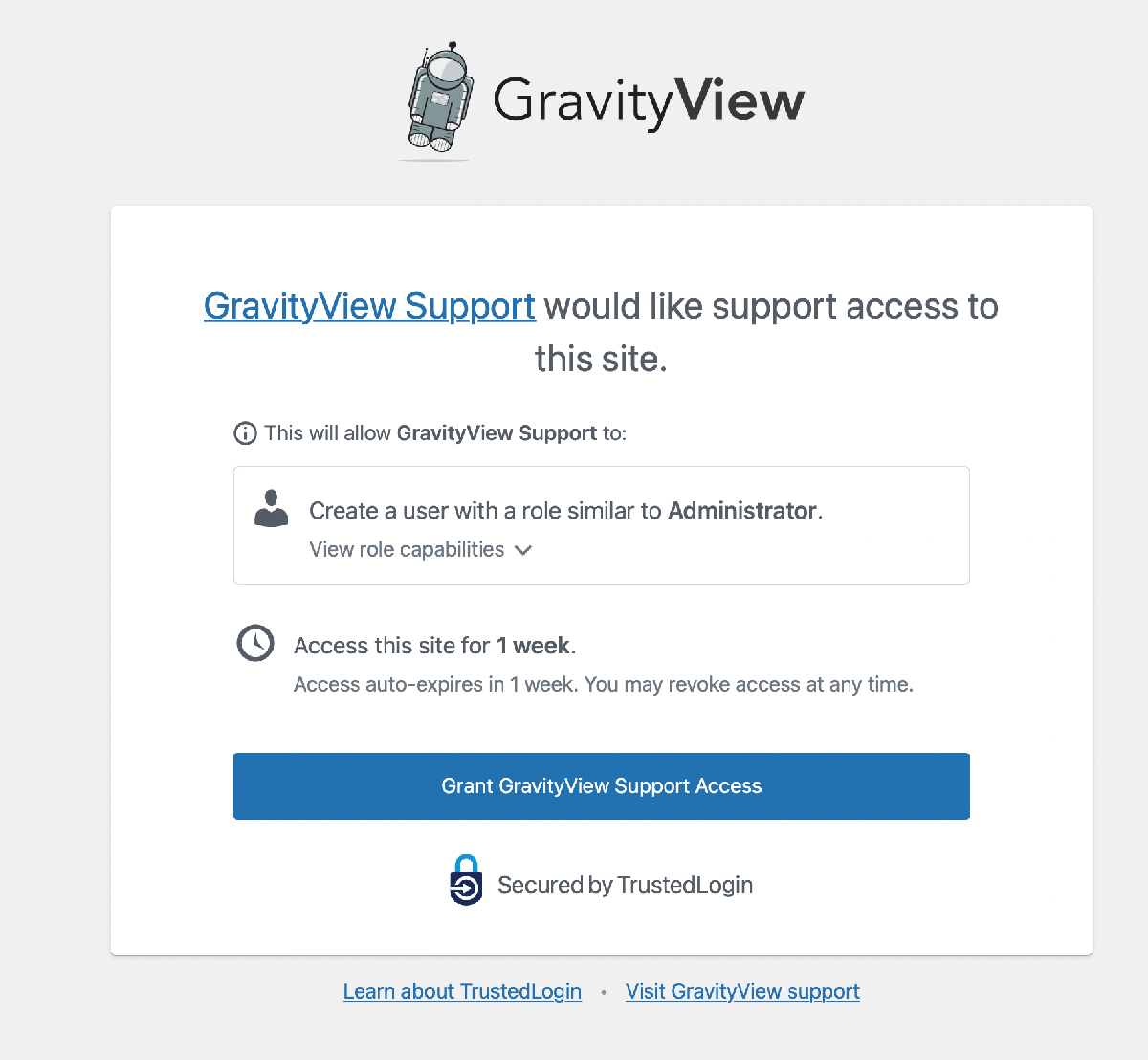
“We’ve implemented TrustedLogin at LearnDash and the team and customers LOVE IT. Such a great UX. We had so many awkward back and forths [to get site logins] previously, and now it’s just BOOM, DONE, and secure all at the same time.”
Matt Cromwell, then Senior Director of Customer Experience, StellarWP
No more “Can you send us your admin login?”
The customer types their password into a reply. In plain text. It sits in your help desk forever. Nobody deletes it. Agents leave; the password stays. And the day that customer gets breached, your ticket history is where their credentials were found.
With TrustedLogin there is no password in that thread to leak, and nothing left behind on the customer’s site to remember to delete. Your customer clicks a button inside your own product, your agent is in the site, and the account disappears when the window you set runs out. Nobody on your team ever asks for a password again.
The professional way into a customer’s site.
A Grant Support Access button inside your own plugin. One click creates a temporary account with exactly the role you need, encrypted before it leaves their server, expiring on a schedule the customer controls. No password ever exists to leak.
Asking for wp-admin credentials says “hobby project.” A support-access button in your plugin says you take their site as seriously as they do.
One click for the customer, one for your agent, and access expires on its own. Free SDK, Help Scout integration, a record of every login.
Support that can’t log in can only guess.
Hour 0: a customer submits a ticket overnight.
Hour 8: support replies, and asks the customer to create a login.
Hour 12: the credentials arrive. They don’t work.
Hour 16: another round of email, and nobody has seen the site yet.
Those are four bounces your team stops making: the customer grants access from your first reply, your agent opens the site, and the fix lands in the exchange that used to ask for a login.
Built by a support team that still runs on it
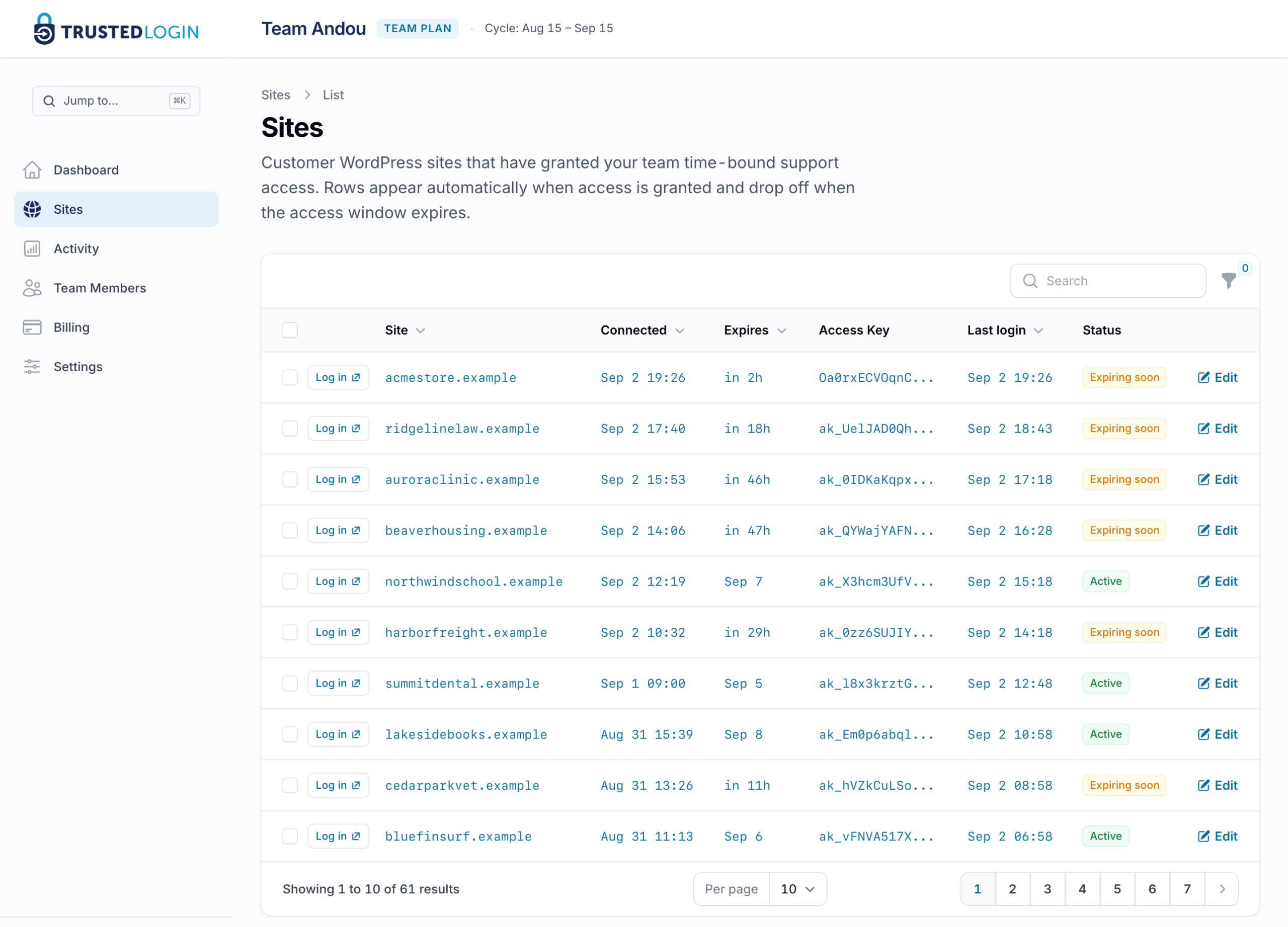
GravityKit built TrustedLogin for its own support desk and still runs on it every day: 2,589 logins across 1,789 customer sites, every one on the record. Plugin companies and agencies run it the same way.
Who can see the login? Your team, and no one else.
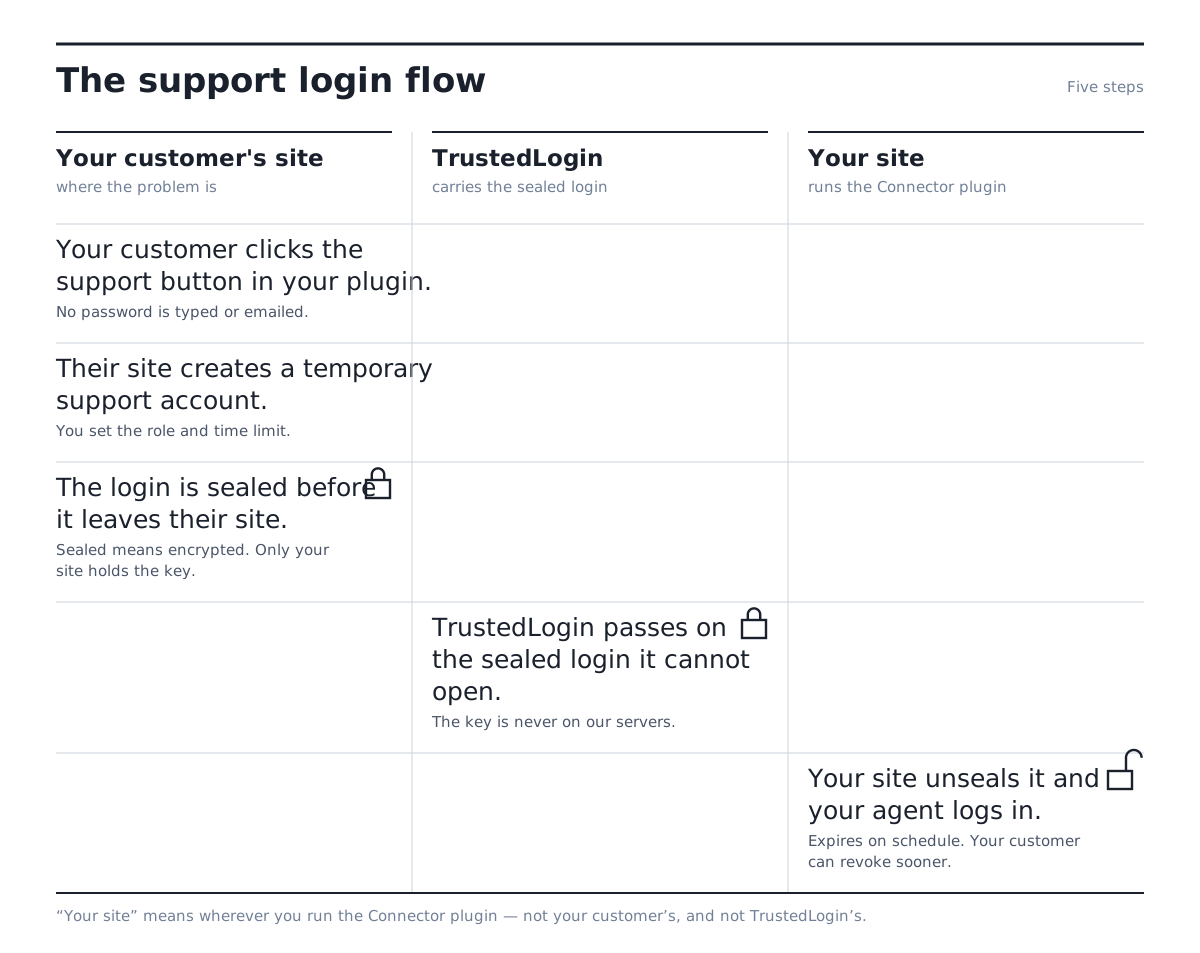
Sooner or later a customer’s security review asks what your support team can reach, and who else can see it. The answer is your own support team, and no one else: the login is sealed on the customer’s site with a key only your site holds, so TrustedLogin passes it along and cannot open it. Access ends on a schedule the customer reads before granting, and they can cut it short from their own WordPress admin. The full architecture, including what happens if we’re unreachable or gone for good, is written out for your reviewer.
Secrets
Everything else? Send a secret.
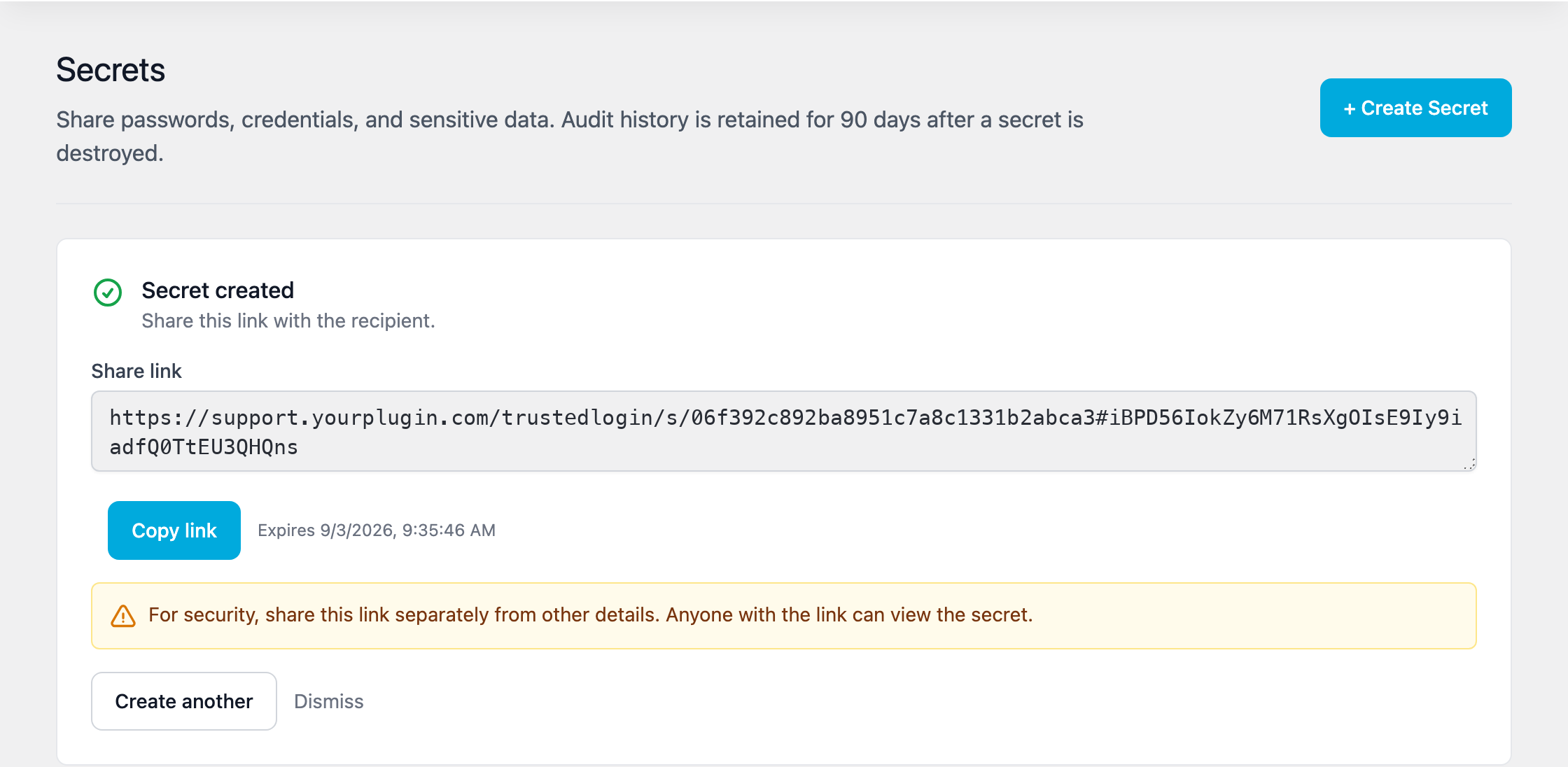
The grant gets your agent into WordPress. For everything else, an FTP login, a hosting account, an API key, credentials for some other service, either side sends a secret link instead of pasting the value into the thread: your team to the customer, or the customer back to you. Set it to vanish on first read, or to live up to 30 days. Nothing sits in the ticket, and nothing reaches our servers to breach.
AI agents are next, under the same rules
A scoped account that expires on schedule and can be revoked like any other session, whether the one logging in is a person or an AI.
Two or three support people usually fit the $49 plan
That plan covers 25 customer sites and 150 support logins a month; most small desks never touch the caps.